

Few decisions in the early months feel as personal, or as loaded, as how you feed your baby. Whether you breastfeed, bottle-feed, or do a bit of both, you’re probably getting plenty of advice. Somewhere in the mix, a quieter question tends to surface: how does the way I feed my baby affect their teeth?
The honest answer is reassuring. Both methods can support a healthy smile, and neither one guarantees cavities or protects against them. What matters most is how often, how long, and when your baby’s teeth are exposed to milk and other sugars, plus the daily habits you build around feeding.
This guide breaks down what the research and pediatric dental guidance say about breastfeeding and teeth and bottle feeding and teeth. It covers cavity risks, night feeds, weaning, and practical steps for protecting those first teeth, so you can feed your baby with confidence.
Why Feeding Method Matters for Oral Health
Baby teeth begin forming before birth and start appearing around six months. They guide the permanent teeth into position and help your child eat and speak. Because they’re thinner-enameled than adult teeth, they’re also more vulnerable to decay.
Tooth decay happens when bacteria in the mouth feed on sugars and produce acid that weakens enamel. Milk, whether human or formula, contains natural sugars. That doesn’t make milk “bad” for teeth. It means the pattern of feeding, not the choice between breast and bottle, drives most of the risk.
Three factors matter most:
- Frequency: Constant sipping or grazing keeps acid levels high in the mouth.
- Timing: Milk left on the teeth overnight is harder for saliva to wash away.
- Hygiene: Gentle, consistent cleaning removes the sugars bacteria love.
Breastfeeding and Dental Health
Major health organizations recommend breastfeeding for its many benefits, and the research on oral health is largely encouraging, with a few important caveats.
Potential Benefits for Jaw and Bite Development
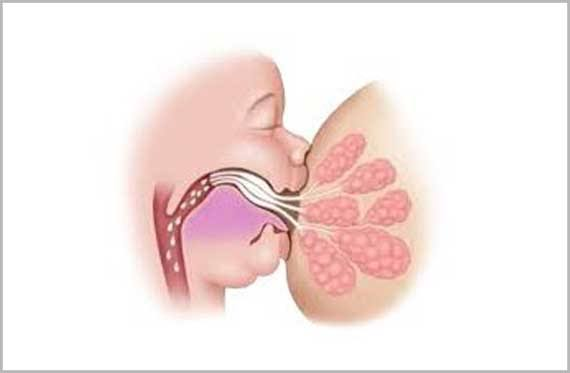
Nursing requires a baby to move the tongue, lips, and jaw in a coordinated way. Some studies suggest that children who were breastfed longer have a lower likelihood of problems like open bite and crossbite, though results aren’t uniform and other factors, such as genetics and pacifier use, also play a role. Think of breastfeeding as one helpful piece of the puzzle rather than a guarantee of straight teeth.
Does Breast Milk Cause Cavities?
This is one of the most searched questions in infant dental care, and the short answer is: breast milk on its own is not considered a major cause of cavities. Breast milk contains protective components, and studies of early nursing haven’t shown a strong link to decay.
The picture changes once teeth erupt and other factors enter the scene. Frequent, prolonged nursing during the night, combined with poor cleaning and other sugar sources like juice or sweet snacks, may raise decay risk. In other words, “nursing cavities” are rarely about breast milk alone. They’re usually about milk plus time plus incomplete cleaning.
Night Nursing and Teeth
Many families find night nursing comforting and practical, and there’s no reason to feel guilty about it. Once your baby has teeth, though, small changes help:
- Wipe or brush your baby’s teeth after the last feeding of the evening.
- Try to avoid letting your baby fall asleep with the nipple in the mouth for long periods once teeth are present.
- Gradually space out or reduce non-hungry night feeds as your pediatrician advises.
Bottle-Feeding and Dental Health
Bottle-feeding, whether with expressed breast milk or formula, is a perfectly healthy way to nourish your baby. The dental considerations center on how the bottle is used.
Formula, Milk, and Sugar Exposure
Formula contains lactose and, in some products, added carbohydrates. Like any milk, it feeds oral bacteria when it stays on the teeth. Sweetened liquids are a bigger concern. Juice, sugary drinks, and flavored milks don’t belong in a baby’s bottle, and pediatric guidelines advise against juice for infants under 12 months.
Bedtime Bottles and Baby Bottle Tooth Decay
The highest-risk habit isn’t the bottle itself. It’s the bottle in bed. When a baby falls asleep sucking on a bottle of milk, formula, or juice, liquid pools around the upper front teeth while saliva flow drops during sleep. This can lead to baby bottle tooth decay, sometimes called “bottle rot,” a form of early childhood tooth decay that often shows up first on the upper front teeth.
If your baby needs a bottle to fall asleep, fill it with plain water only, and aim to finish milk feeds before bedtime brushing. You can find a deeper walkthrough of causes, warning signs, and prevention in Owl Pediatric & Orthodontic Dentistry’s guide to baby bottle tooth decay.
Bottle Use, Bite, and Nipple Choice
Prolonged bottle use past infancy has been linked in some studies to changes in bite, such as an open bite or increased overjet. Marketing often promotes “orthodontic” nipples, but there’s limited evidence that any specific shape prevents bite problems. A slow-flow nipple that matches your baby’s age and feeding pace is generally a sensible choice, and moving to a cup on schedule matters more than the nipple style.
Breastfeeding vs. Bottle-Feeding: A Quick Comparison
| Factor | Breastfeeding | Bottle-Feeding |
| Sugar in milk | Natural lactose; protective compounds present | Lactose in milk and formula; additives vary |
| Main cavity risk | Frequent night feeds after teeth erupt, plus poor cleaning | Bottles in bed, sipping over long periods, sweet liquids |
| Jaw and bite | Linked in some studies to lower rates of bite problems | Prolonged use may affect bite alignment |
| Key habit to watch | Falling asleep nursing after teeth appear | Falling asleep with a bottle |
| Best protection | Cleaning teeth before bed; spacing night feeds | Water-only bedtime bottles; weaning to a cup |
The bottom line: neither method is “better” for teeth in every situation. Healthy feeding habits and good oral hygiene count for more than the feeding method.
Early Childhood Caries: Signs to Watch For
Early childhood caries (ECC) is the clinical term for tooth decay in babies and young children. It’s one of the most common chronic childhood conditions, and it’s largely preventable. Check your child’s teeth regularly, lifting the lip to view the upper front teeth. Look for:
- Chalky white lines or patches near the gumline, often the first sign
- Light brown or dark spots on the teeth
- Visible holes or rough, chipped areas
- Swollen or red gums
- Fussiness while eating or sensitivity to cold
White spots can reverse in early stages with proper care, which is one reason early dental visits matter. If you notice any of these signs, don’t wait for the next scheduled visit.
Healthy Feeding Habits for Teeth, No Matter How You Feed
Before the First Tooth
Teeth haven’t erupted yet, but oral care can start. After feedings, wipe your baby’s gums with a soft, clean, damp cloth. This clears milk residue and helps your baby get used to mouth care. Pediatric dental teams also check for oral development issues such as tongue-tie, which can affect both breastfeeding and bottle-feeding. You can learn how this fits into early care on the practice’s dentistry for infants page.
After the First Tooth Appears
Once a tooth erupts, switch to a soft infant toothbrush and brush twice a day, especially before bed. Use a gentle circular motion and don’t forget the gumline, where milk residue tends to collect. If you’re curious about teething, Owl Pediatric Dentistry’s baby teething symptoms and relief guide is a helpful companion.
Fluoride and Water
Fluoride strengthens enamel and helps prevent decay. For children under three, use a smear of fluoride toothpaste about the size of a grain of rice. Formula mixed with fluoridated tap water is generally considered safe, and a small risk of mild, cosmetic fluorosis exists with very frequent use. If you’re unsure, ask your dentist or pediatrician what’s right for your child. Professional fluoride treatments and other preventive dentistry services can add another layer of protection when appropriate.
Avoid Sharing Saliva
Cavity-causing bacteria can pass from caregivers to babies through saliva. Avoid sharing spoons, tasting food with your baby’s utensils, or “cleaning” a dropped pacifier with your mouth. These small habits reduce early bacterial transfer.
Weaning From the Breast and Bottle
Weaning is a gradual shift, and timing varies by family. From a dental standpoint, a few milestones are worth noting.
Introducing a Cup
Pediatric dental guidance encourages introducing a cup around your baby’s first birthday and moving away from regular bottle use by roughly 12 to 18 months. Start with a few sips of water or milk at meals, then slowly replace bottle feeds with cup feeds.
Tips for a Smooth Transition
- Begin by dropping the least important feed of the day, and replace it with a cup at a meal.
- Offer milk with meals rather than allowing all-day sipping.
- Keep bedtime consistent: brush, read a book, and finish feeding before sleep.
- Offer comfort in new ways, such as cuddles, songs, or a favorite blanket.
Breastfeeding can continue as long as you and your baby wish. If you’re nursing a toddler, the same principles apply: clean teeth before bed, avoid constant night nursing with sugar exposure, and keep up with regular checkups. For ongoing support as your child grows, explore the practice’s dentistry for toddlers services.
A Note on Pacifiers and Thumb Sucking
Many babies soothe with a pacifier or thumb. Neither is harmful in the early months, but prolonged habits past the toddler years can affect the bite. Never dip a pacifier in honey, sugar, or syrup. For tips on when to step in, read the practice’s article on thumb sucking and pacifier habits.
When to See a Pediatric Dentist
The American Academy of Pediatric Dentistry recommends a first dental visit by your child’s first birthday or within six months of the first tooth appearing. A first visit is short and gentle, and it’s as much about guiding parents as examining the baby. The dentist will check teeth and gums, assess cavity risk, review feeding and cleaning habits, and answer questions specific to your family.
Book sooner if you notice white or brown spots, swollen gums, difficulty feeding, signs of tongue-tie, or any injury to the teeth. To know what to expect, read about your child’s first visit at Owl Pediatric Dentistry.
Frequently Asked Questions
Is breastfeeding or bottle-feeding better for baby’s teeth?
Neither is clearly better for every child. Breastfeeding may support jaw and bite development, while bottle-feeding is safe when bottles aren’t used in bed or for constant sipping. Healthy habits matter more than the method.
Can breast milk cause cavities?
Breast milk alone is not considered a major cause of tooth decay. Risk rises when frequent night nursing after teeth erupt combines with incomplete cleaning or other sugar exposure.
Should I brush my baby’s teeth after every feeding?
Brushing twice daily, especially before bed, is the goal. Between brushings, you can wipe the teeth and gums with a clean, damp cloth after feeds.
When should I stop bottle-feeding?
Most pediatric dental guidance suggests introducing a cup by about 12 months and weaning from regular bottle use by 12 to 18 months.
Is formula worse for teeth than breast milk?
Not on its own. Both contain natural sugars. What matters is how long milk stays on the teeth and how well teeth are cleaned.
Final Thoughts: Fed, Cared For, and Smiling
Whether your baby breastfeeds, drinks from a bottle, or does both, your care and consistency do the heavy lifting. Wipe gums, brush new teeth, skip the bedtime bottle of milk or juice, move to a cup on time, and schedule that first dental visit.
If you have questions about your baby’s feeding routine or want personalized guidance, the pediatric specialists at Owl Pediatric & Orthodontic Dentistry in Bloomingdale, IL are happy to help families start strong, from the first tooth through the teen years.