
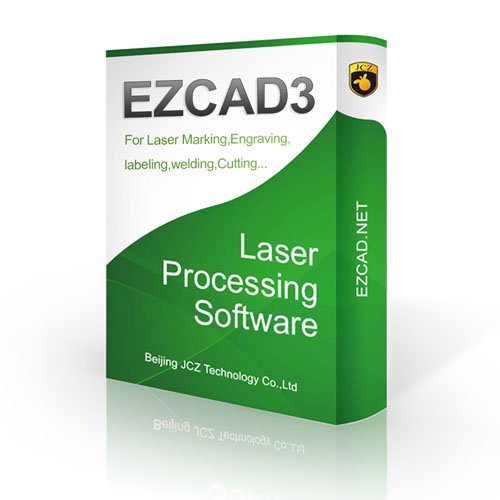

EZCAD2 is a widely used laser marking software designed to control fiber laser marking machines and other compatible laser systems. It allows operators to create, edit, and process designs for engraving text, logos, serial numbers, barcodes, and graphics on different materials.
For businesses involved in industrial manufacturing, metal engraving, and product customization, EZCAD2 provides a practical solution for managing laser marking operations. If you are searching for ezcad2 download, understanding the installation process and system requirements will help you get started smoothly.
What Is EZCAD2 Used For?
EZCAD2 is commonly used with fiber laser marking machines equipped with compatible control boards. The software helps users prepare designs and send marking instructions to the laser machine.
Typical applications include:
-
Engraving company logos on metal products.
-
Marking serial numbers and identification codes.
-
Creating QR codes and barcodes.
-
Personalizing jewelry and accessories.
-
Engraving product information and manufacturing details.
-
Marking tools, automotive components, and industrial equipment.
Its applications make it useful for manufacturers, workshops, and businesses offering professional engraving services.
How to Download EZCAD2
Before starting the installation, make sure you obtain the correct software version for your laser marking machine. EZCAD2 versions may differ depending on the control board and hardware configuration.
Follow these steps:
-
Contact your laser machine manufacturer or supplier.
-
Request the compatible EZCAD2 installation package.
-
Check whether your computer meets the software’s system requirements.
-
Download the installation files from the manufacturer’s official source.
-
Extract the downloaded ZIP or RAR folder if necessary.
-
Open the installation directory and follow the supplied setup instructions.
Choosing the correct version is important because incompatible software may prevent the laser system from communicating with the computer.
EZCAD2 Installation Requirements
Before installing the software, prepare a compatible Windows computer and check the following requirements:
-
A supported Windows operating system.
-
Compatible USB connection and laser control board.
-
Required device drivers.
-
Sufficient storage space.
-
Compatible laser marking controller.
-
Administrator permissions for installation.
The exact requirements depend on the EZCAD2 version and the hardware supplied with your machine.
Setting Up EZCAD2 for Laser Marking
After installation, connect your laser marking machine to the computer using the recommended connection method. Install the appropriate controller drivers and open the software.
Create a new project and import your design or enter the required text. Adjust marking parameters such as speed, power, frequency, and marking passes according to the material and machine specifications.
Always perform a test mark on a sample material before beginning full production. Correct parameter settings help achieve consistent marking quality and reduce unnecessary material waste.
Common EZCAD2 Download and Installation Problems
Some users experience difficulties during installation or while connecting the software to their laser machines.
Common problems include:
-
USB Connection Errors: Check the USB cable, controller connection, and device drivers.
-
Software Compatibility: Make sure the installed version supports your laser controller.
-
Driver Installation Issues: Reinstall the correct driver provided by the manufacturer.
-
Software Not Opening: Check Windows compatibility and installation permissions.
-
Laser Not Responding: Verify controller settings and machine connections.
If problems continue, contact your machine supplier for technical assistance instead of installing random software packages.
Final Thoughts
EZCAD2 remains an important software solution for businesses using compatible laser marking machines. Finding the correct ezcad2 download package, installing the required drivers, and configuring the software properly are essential steps for smooth operation.
Whether you work in metal engraving, jewelry production, industrial manufacturing, or customized product marking, learning how to use EZCAD2 can help improve your daily production workflow. Always obtain the software from a trusted manufacturer or supplier to ensure compatibility and reliable operation.