

Black and white photography has a timeless appeal. By removing distracting colours, it brings attention to lighting, shadows, textures, expressions, and composition. Whether you want to create an artistic portrait, prepare a professional design, or give an ordinary photograph a vintage appearance, a monochrome converter makes image editing quick and convenient.
With the JPG Joiner Monochrome Converter, you can convert images into classic black and white or experiment with attractive single-tone effects. The online tool offers multiple styles, including Pure B&W, Sepia, Cyanotype, Lavender, Warm Tone, and Cool Green. Its real-time preview helps you compare different appearances before downloading your edited image.
What Is a Monochrome Converter?
A monochrome converter is an online image editing tool that transforms a colourful photograph into an image based on a single colour or colour family. The most familiar result is grayscale, which contains different shades of black, grey, and white.
Monochrome images can also use a single tint, such as warm brown, cool blue, or muted green. These colour treatments create different visual moods while maintaining a consistent tonal appearance.
A monochrome photo can look elegant, dramatic, nostalgic, or minimalist. This makes monochrome conversion useful for portraits, landscapes, product photography, social media posts, website graphics, and creative projects.
Why Convert an Image to Monochrome?
Colour is an important part of photography, but sometimes removing it makes an image more expressive. A monochrome effect can help viewers focus on the subject instead of being distracted by multiple colours.
Here are some reasons to convert an image to monochrome:
1. Create Classic Black and White Photography
Black and white photographs have a traditional appearance that works particularly well for portraits, architecture, street photography, and landscapes. They can give modern photographs a timeless visual style.
2. Highlight Texture and Details
Without bright colours, details such as hair, fabric, wood, stone, and architectural patterns can become more noticeable. Monochrome editing is useful when texture is an important part of the photograph.
3. Produce Vintage Photo Effects
A sepia tone creates a warm brown appearance associated with traditional photographs. It is a popular choice for nostalgic designs, family photo collections, invitations, and creative artwork.
4. Create Consistent Visual Content
Designers, bloggers, and social media creators often use monochrome images to maintain a consistent visual identity. A collection of black and white photographs can give a website or portfolio a clean and coordinated appearance.
5. Emphasise Light and Shadow
Monochrome photography makes tonal differences especially important. Highlights, shadows, and contrast can help create depth and direct attention towards the main subject.
How to Convert an Image to Monochrome Online
You do not need professional editing software to create a black and white photograph. JPG Joiner provides a simple browser-based process.
Step 1: Open the Online Converter
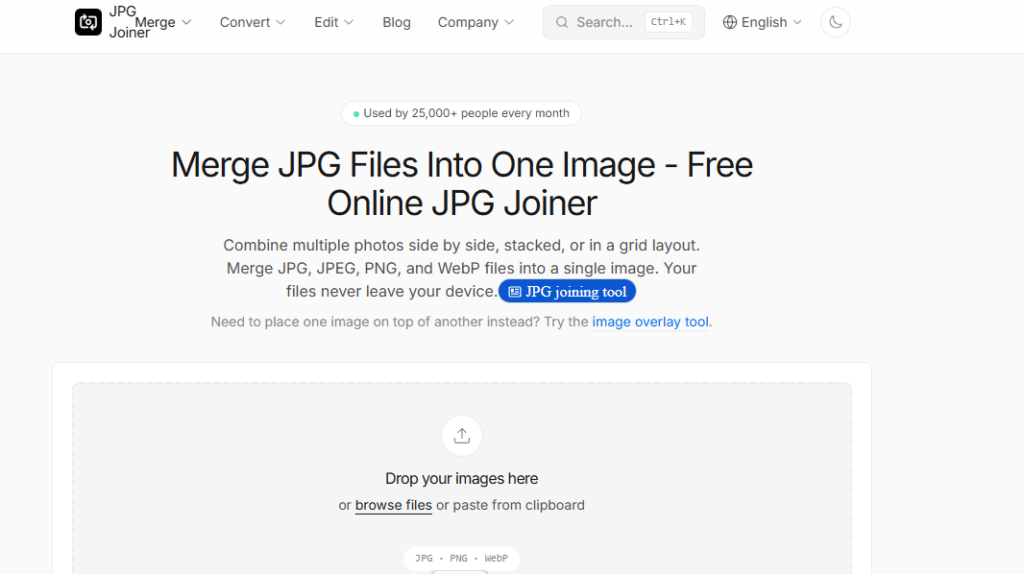
Visit the JPG Joiner Monochrome Converter using your desktop or mobile browser.
Step 2: Upload Your Photograph
Drag and drop an image into the upload area or select a file from your device. The tool supports JPG, JPEG, PNG, and WebP images.
Step 3: Select Your Preferred Style
Choose a monochrome style according to the appearance you want:
- Pure B&W: Creates neutral grayscale shades for a traditional black and white photograph.
- Sepia: Adds warm brown tones for a vintage look.
- Cyanotype: Gives the image a cool blue appearance.
- Lavender: Adds a subtle purple tint.
- Warm Tone: Creates a gentle warm colour cast.
- Cool Green: Produces a muted green monochrome effect.
The preview updates when you select a style, allowing you to compare the available options.
Step 4: Preview Your Image
Check the edited photograph carefully. Look at the brightness, shadows, facial details, and overall composition. Try another style if the first option does not match your creative requirements.
Step 5: Download the Converted Image
Once you are satisfied with the result, select Download Monochrome. The tool saves the full-resolution image in its original format. For JPG output, you can adjust the image quality before downloading.
How Does a Black and White Image Converter Work?
A black and white image converter changes the colour information of each pixel into a brightness value. Instead of displaying separate red, green, and blue colours, the converted image uses neutral grey values.
JPG Joiner calculates pixel luminance using the standard ITU-R BT.601 formula:
Luminance = 0.299R + 0.587G + 0.114B
In this formula, R represents red, G represents green, and B represents blue. Each colour channel receives a different weight to calculate perceived brightness.
For a pure grayscale image, the resulting brightness value is applied equally to the red, green, and blue channels. For tinted monochrome styles, the brightness is combined with the selected tint to produce the desired colour effect.
This process allows the converter to preserve the photograph’s light and dark areas while changing its overall appearance.
Monochrome vs Grayscale: Understanding the Difference
People often use the words monochrome and grayscale as if they mean the same thing. However, grayscale is technically one type of monochrome image.
| Feature | Grayscale | Monochrome |
|---|---|---|
| Colour appearance | Black, white, and grey | One colour or colour family |
| Colour tint | Neutral | Can be warm or cool |
| Example | Classic black and white | Sepia or cyanotype |
| Common use | Traditional photography | Artistic and creative effects |
If you want a standard black and white photograph, choose Pure B&W. If you prefer a creative effect, try Sepia, Cyanotype, or another available tint.
Tips for Making a Photo Black and White
A good monochrome result depends on more than simply removing colour. The original photograph, lighting, contrast, and selected style all influence the final appearance.
Consider these practical tips:
- Start with a clear photograph: A sharp image with visible details generally produces a better result.
- Check the lighting: Photographs with interesting highlights and shadows can look especially effective in black and white.
- Experiment with different styles: Compare neutral grayscale with sepia and other tints before choosing your favourite.
- Consider the subject: Portraits may suit softer tones, while architecture and dramatic landscapes can benefit from stronger contrast.
- Avoid losing important details: Very dark shadows or extremely bright highlights can hide parts of the subject.
- Keep an original copy: Save the colour photograph separately so you can create different versions later.
- Check the downloaded file: Review the final image at its intended display size before publishing or printing it.
Who Can Benefit from an Online Grayscale Image Tool?
A grayscale image tool can support a variety of personal and professional projects.
- Photographers: Create artistic portraits, landscapes, and monochrome photography collections.
- Graphic designers: Prepare black and white images for posters, brochures, presentations, and digital designs.
- Bloggers: Give editorial photographs and featured images a consistent visual appearance.
- Students: Edit pictures for school assignments, presentations, and creative projects.
- Business owners: Create simple, elegant visuals for websites and promotional material.
- Social media creators: Design distinctive posts, profile images, and visual content.
An online monochrome photo tool is especially convenient when you want to edit an image without installing a separate application.
Explore More Image Editing Tools from JPG Joiner
After converting an image to monochrome, you may want to make additional adjustments to achieve your preferred style. JPG Joiner offers other browser-based tools for image editing.
- Noise Filter: Add film grain or noise to create a classic analogue photography effect. A subtle grain effect can work particularly well with black and white images.
- Contrast Adjuster: Increase or reduce the difference between light and dark areas to create a softer or more dramatic appearance.
- Image Color Picker: Identify and copy colour codes from images using HEX, RGB, HSL, or CMYK values.
Combining suitable editing effects can help you create a distinctive visual style for your personal photographs or professional designs.
Is JPG Joiner’s Monochrome Converter Safe to Use?
Privacy is an important consideration when editing personal photographs online. JPG Joiner’s Monochrome Converter processes images directly in your browser using JavaScript and the Canvas API. Your selected image is not uploaded to a remote server for conversion.
The tool also offers a straightforward editing experience without requiring an account or adding a watermark. You can upload an image, select a style, preview the result, and download the edited file.
For important photographs, it is still a good practice to keep a separate backup of the original image.
Frequently Asked Questions
1. What is the best monochrome converter online?
The best tool depends on your editing requirements. JPG Joiner’s Monochrome Converter offers several styles, including Pure B&W, Sepia, Cyanotype, Lavender, Warm Tone, and Cool Green, with a real-time preview.
2. How can I convert an image to monochrome for free?
Open JPG Joiner’s Monochrome Converter, upload your photograph, select a preferred monochrome style, preview the result, and download the edited image.
3. Is a monochrome converter the same as a black and white image converter?
Not exactly. A black and white converter usually produces neutral grayscale images. A monochrome converter can also create tinted effects such as sepia, blue, purple, and green.
4. Can I make a photo black and white without installing software?
Yes. JPG Joiner’s online tool works in a compatible web browser. You can edit and download your photograph without installing additional software.
5. Which image formats are supported?
The tool accepts JPG, JPEG, PNG, and WebP images. The downloaded result retains the original image format.
6. Can I use the monochrome photo tool on my mobile phone?
Yes. Open the converter in a compatible mobile browser, select a photograph, choose a style, and download the result. The preview supports mobile use.
7. Does converting a colour photo to grayscale reduce image quality?
The conversion changes the pixel colours into grayscale values. The tool provides full-resolution output. For JPG files, the selected compression quality can affect the final file’s appearance, so choose an appropriate quality setting before downloading.
8. Are my photographs uploaded to a server?
No. The conversion takes place directly in your browser using the Canvas API and JavaScript. Your image does not need to be sent to a remote server for processing.
Conclusion
Monochrome photography offers a simple way to give ordinary pictures a distinctive and timeless appearance. Whether you want to convert an image to monochrome, make a photo black and white, or create a vintage effect with sepia tones, an online converter makes the process convenient.